Safe Recovery After Accidental File Deletion
After an accidental deletion, the most useful action is to pause. On many storage devices, deletion removes the file's reference rather than immediately clearing every byte. The operating system may then reuse that space. Continued use can reduce what remains, so protect the source before trying recovery software.
Pause and identify the source
Stop saving, downloading, recording, or installing files to the device that held the deleted data. For removable media such as a USB drive or SD card, eject it safely and set it aside until you are ready to scan. Do not format it, run a repair, or accept a prompt to initialize an unreadable disk. These steps can modify the source.
First check simple existing copies: the Recycle Bin or Trash, the application's recent files, a cloud recycle area, another computer, or a backup you already maintain. These are often the least invasive ways to retrieve a file. Avoid syncing a mistaken deletion across devices before checking whether another copy remains.
Use a read-only scan carefully
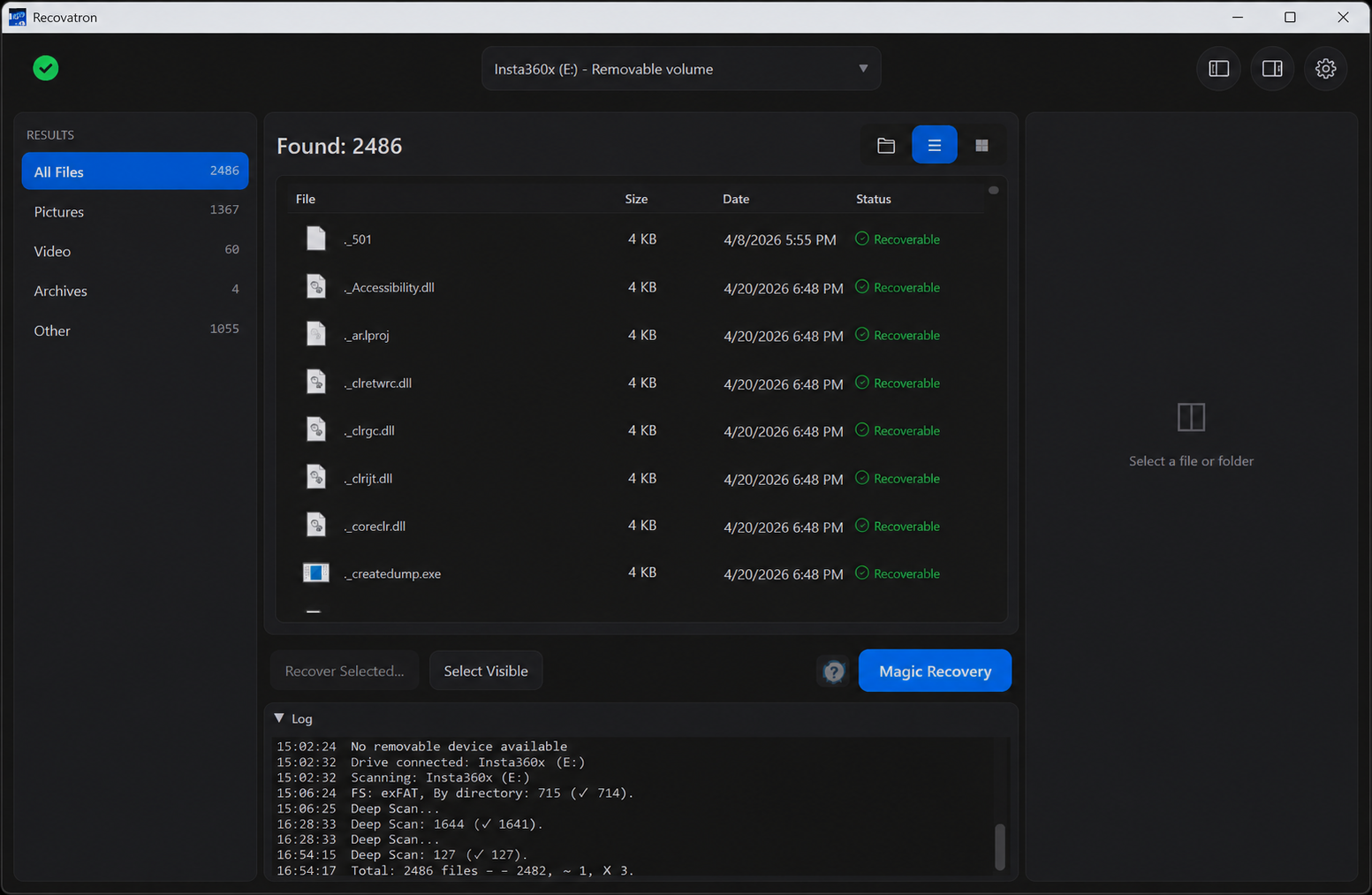
If no copy is available, Recovatron can scan supported media on Windows and macOS. Select the device that originally contained the files, not a destination folder or a different disk. The scan reads available information and searches for recoverable entries or recognizable content. It is not a repair tool and cannot bring back data that has been overwritten.
FAT32 and exFAT engines can make use of surviving file-system metadata. Raw signature scanning may locate recognizable files even without directory records, but the original names and folders may be lost. Fragmented files, especially videos, can be incomplete when the information needed to join their parts is unavailable.
For access errors, Windows may require elevated permission and macOS may require Full Disk Access. Follow the operating system or application instructions, then retry. Do not use a write-based repair as a workaround for permission trouble.
Recover selectively and save elsewhere
Review results using the information available: name, type, size, location, and preview. Names can be missing in raw results, and a preview may show only part of a file. Select a few important items manually if you want to check a small recovery first.
For Magic Recovery automatic saving, choose a different physical drive before recovery starts. The destination can be the computer's internal disk or another external device. Do not select the source device, a folder on it, or another partition on the same physical drive. Recovery writes output somewhere; keeping it off the source reduces the chance that the output will overwrite additional deleted content. Afterward, open the copies from the destination and make another backup of files that matter.
Know when to stop
Repeated connection failures, unusual heat, physical damage, clicking sounds from a mechanical drive, or inconsistent device capacity are reasons to stop experimenting. A professional may be able to advise on failing hardware, while software cannot repair a physically damaged device. Avoid repeated scans if the device becomes less stable.
For a USB-specific walkthrough, see recovering deleted USB files. For SD cards, read recovering deleted photos or the Windows SD card guide. Camera footage has additional fragmentation limits described in camera video recovery. Visit download or support for app access and help.
Frequently asked questions
Should I keep using the computer after deleting a file?
Minimize activity on the affected storage, especially downloads, installs, and file copies. If the deleted file was on removable media, stop using that media.
Does a successful scan mean recovery will work?
No. A scan can identify possible files, but overwritten, damaged, or fragmented data may not open completely.
Is a separate folder enough for safe recovery?
Only if it is on a different physical drive. Saving to the source device, even in another folder or partition, risks overwriting recoverable data.
Scan your USB drive or memory card
Try Recovatron on Windows or macOS. Choose a separate drive for recovered copies and check a few important files first.
Download RecovatronRelated recovery guides
How to Recover Deleted Files from a USB Drive
What to do after deleting files from a USB flash drive, how to scan it safely, and where to save recovered files.
Read guide →How to Recover Deleted Photos from an SD Card
A careful workflow for deleted camera photos: stop using the card, scan it, inspect matches, and save elsewhere.
Read guide →SD Card Recovery on Windows: A Safe Step-by-Step Guide
How to scan an SD card from Windows without formatting or repairing the source, and how to save results safely.
Read guide →How to Recover Deleted or Missing Camera Videos
A cautious guide to scanning camera cards for deleted video while protecting source footage from further writes.
Read guide →Safe Recovery After Accidental File Deletion
The first steps to take after deleting files, plus practical advice for scanning and saving without overwriting the source.
Read guide →