How to Recover Deleted or Missing Camera Videos
Losing camera footage can be stressful, especially when the card was used for a one-time event. Stop recording to that card as soon as you notice missing clips. Video files can occupy large, continuous or fragmented regions, and recording more footage may reuse the very space where deleted clips remain.
Stop recording and preserve the card
Power the camera down normally and wait for any card activity to finish before removing the SD card. Do not record a test clip, format the card, or use a camera repair function. Even a short recording may write metadata and video data to the card. Keep track of which camera and card were involved, because camera models can use different video formats and directory conventions.
If the card is unstable, repeatedly disconnects, or is not detected reliably, avoid repeated scans. Unusual heat, physical damage, or inconsistent capacity can indicate a hardware problem. When footage is valuable, a data-recovery professional can advise whether further access is appropriate. Software recovery cannot repair failing flash memory.
Scan for available video data
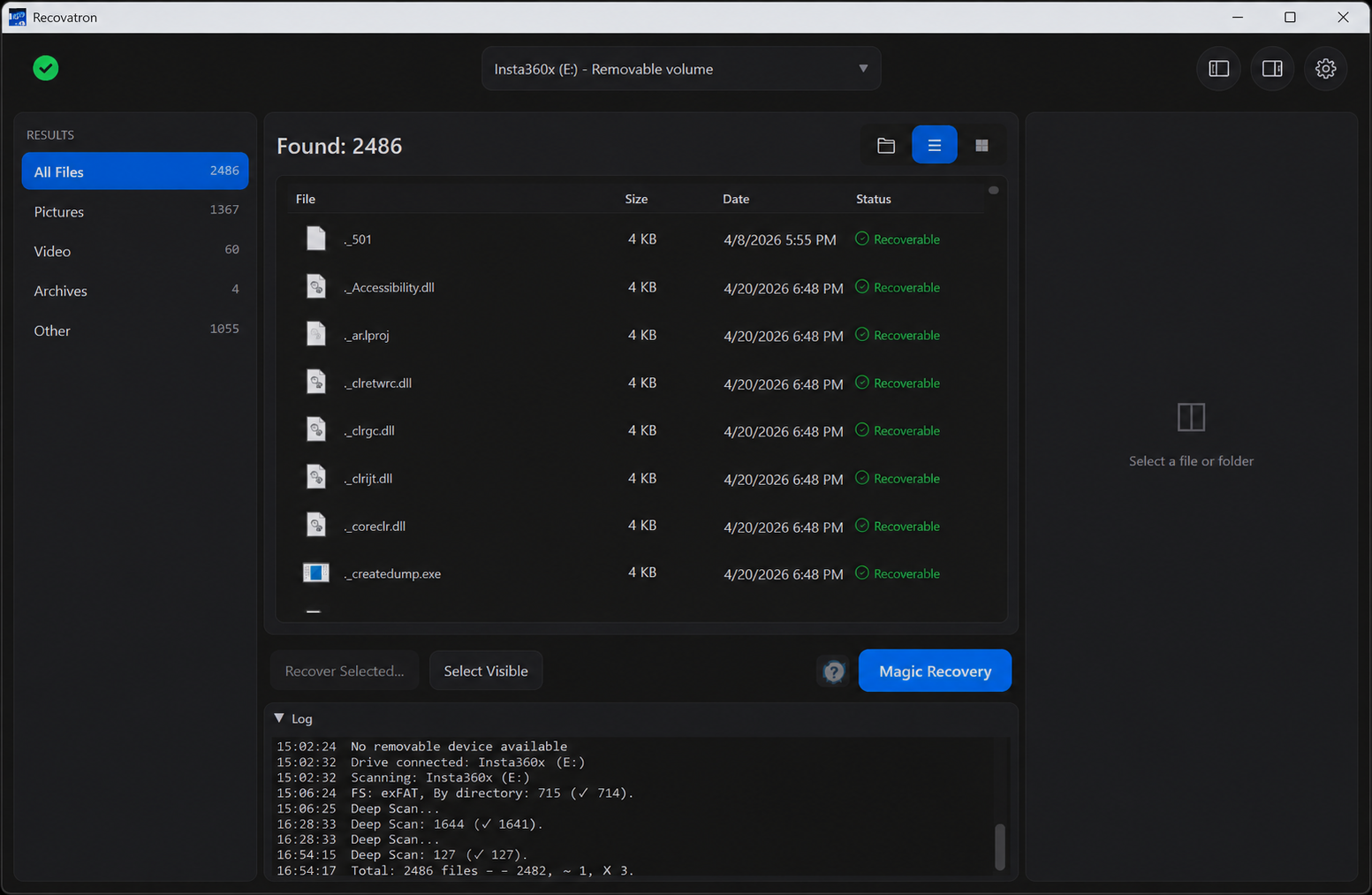
Connect the card using a dependable reader and scan it with Recovatron on Windows or macOS. Select the card as the source. The scanner reads available information and searches for files; it does not need to format or repair the source. Windows may require elevated access for certain removable media. macOS may require Full Disk Access to scan external devices. Follow the operating system's access instructions and retry.
With FAT32 or exFAT file-system information still available, a scan may present deleted entries with useful names or paths. A raw signature scan can also find recognizable video content when directory records are missing, but it may not know the clip's original name, folder, or complete boundaries.
Understand fragmented-video limits
A video is not always stored as one uninterrupted block. As a card fills and files are deleted, the camera may place parts of a new clip in separate areas. Directory metadata can help connect those parts. If that metadata is gone, signature carving may identify a recognizable beginning without knowing where every fragment belongs. The recovered result can therefore stop early, contain gaps, or fail to play. A scan listing alone cannot establish that an entire recording has been recovered.
Review available names, sizes, and previews, but verify the saved video by opening it and seeking through different points. Some players may show a short beginning even when later content is missing. Keep the original card unchanged while you assess the copy.
Choose a safe save location
Use a different physical drive as the destination, such as the computer's internal storage or another external disk. Set that destination before using Magic Recovery's automatic save. Saving to the card being scanned can overwrite other clips that remain recoverable. You can also select a few files manually and save them to the separate drive before deciding whether to recover more.
After checking the files, make a second backup of the footage you can play. For photo recovery, read deleted SD card photos; for Windows access and scan steps, see SD card recovery on Windows. General deletion precautions are in safe recovery after accidental deletion. Find the app at download or ask support.
Frequently asked questions
Can recovery guarantee a complete camera clip?
No. Results depend on whether the clip's data and the information connecting its parts remain. Raw carving can lose fragments or recover only part of a video.
Why does a recovered video have a generic name?
A raw signature scan may find content without its original directory entry, so the source filename and folder may not be available.
Can I keep using the card after scanning?
Wait until you have checked and backed up the recovered footage. Further recording can overwrite data that was not yet recovered.
Scan your USB drive or memory card
Try Recovatron on Windows or macOS. Choose a separate drive for recovered copies and check a few important files first.
Download RecovatronRelated recovery guides
How to Recover Deleted Files from a USB Drive
What to do after deleting files from a USB flash drive, how to scan it safely, and where to save recovered files.
Read guide →How to Recover Deleted Photos from an SD Card
A careful workflow for deleted camera photos: stop using the card, scan it, inspect matches, and save elsewhere.
Read guide →SD Card Recovery on Windows: A Safe Step-by-Step Guide
How to scan an SD card from Windows without formatting or repairing the source, and how to save results safely.
Read guide →How to Recover Deleted or Missing Camera Videos
A cautious guide to scanning camera cards for deleted video while protecting source footage from further writes.
Read guide →Safe Recovery After Accidental File Deletion
The first steps to take after deleting files, plus practical advice for scanning and saving without overwriting the source.
Read guide →